Start writing your article here…
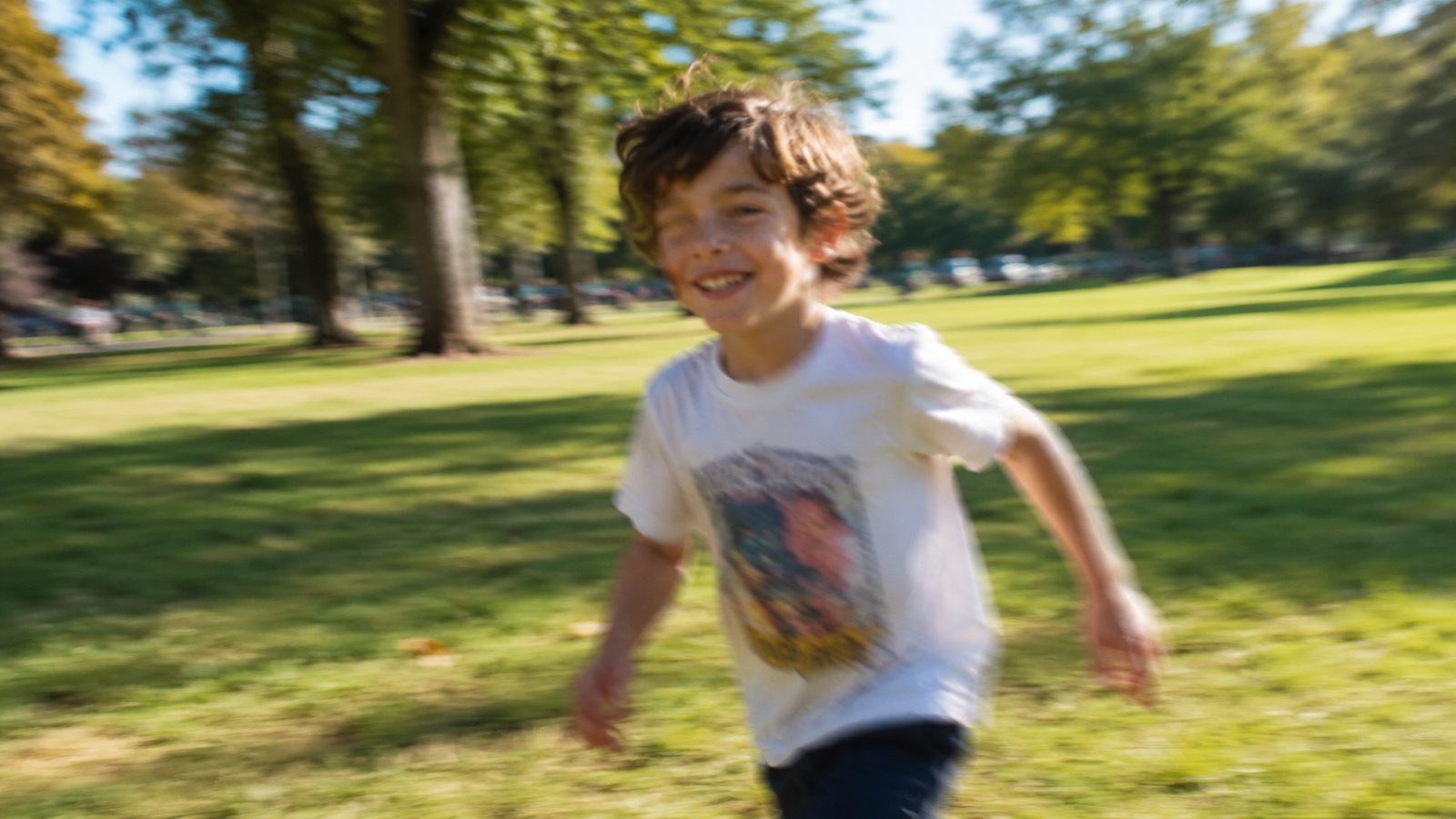
We've all been there. You take what you think is the perfect photo — your kid blowing out birthday candles, a sunset on holiday, your dog finally sitting still — and when you open it later, it's blurry. Out of focus. Ruined. And the moment is gone, so you can't just take it again.
Here's the good news: a blurry photo isn't always a lost cause anymore. Thanks to AI, you can sharpen and unblur photos right on your phone, for free, in about a minute — no computer, no Photoshop, no skills required. Let me show you exactly how.
Why do photos come out blurry?
Before we fix it, it helps to know what went wrong — it tells you what AI can realistically recover. Photos usually blur for one of these reasons:
- Motion blur — your hand shook, or the subject moved while the camera was capturing.
- Out of focus — the camera locked focus on the wrong thing (the background instead of the face).
- Low light — in the dark, the camera slows down and any tiny movement smears the image.
- Low resolution — old photos, screenshots, or heavily zoomed shots simply don't have much detail to begin with.
AI handles the first three really well. The last one — very low resolution — it can improve, but it can't invent detail that was never captured. More on that below.
What does an AI "unblur" tool actually do?
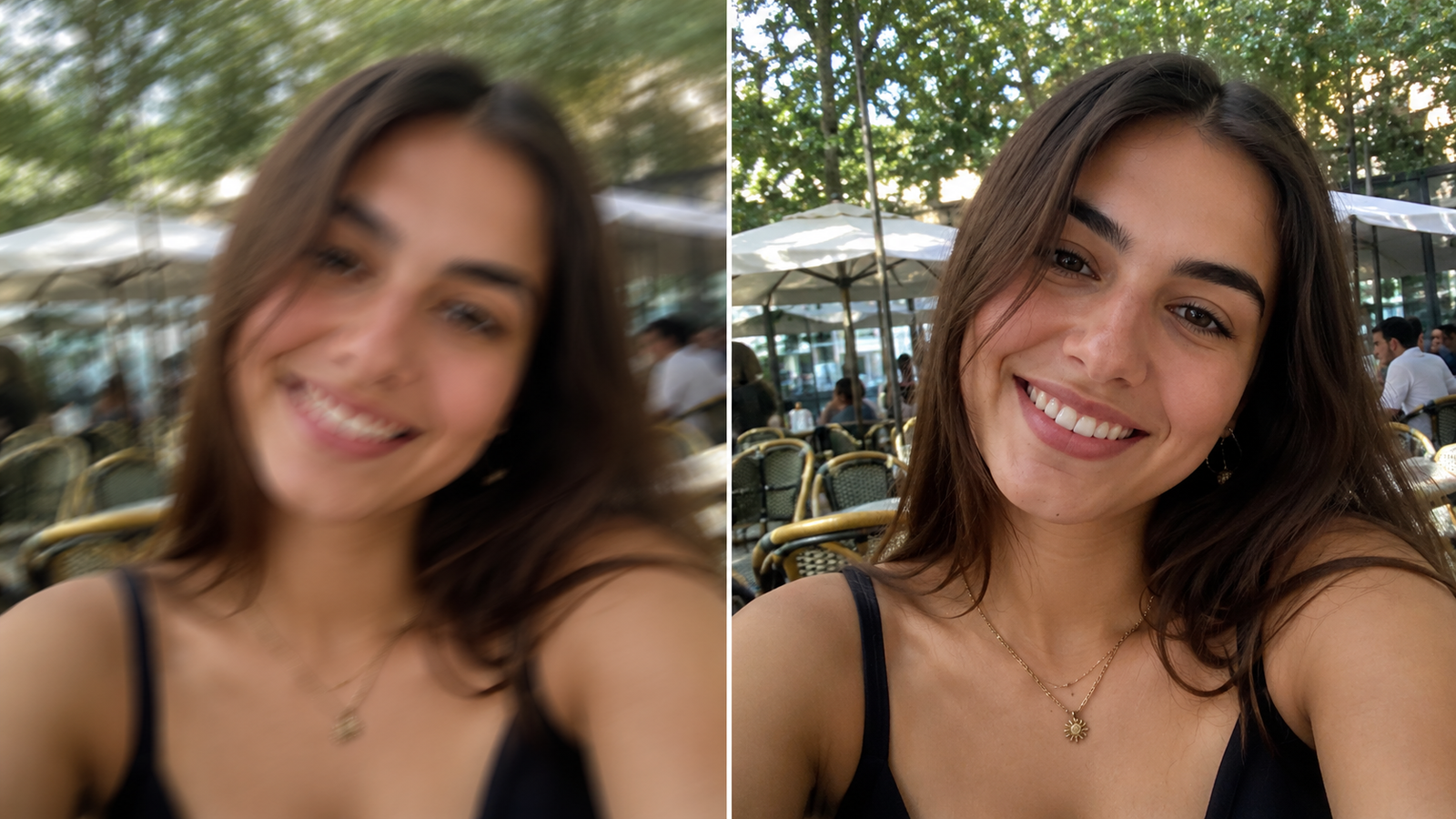
Older sharpening tools just boosted edges, which often made photos look harsh and grainy. AI works differently. It recognises what a face, an eye, or an object should look like and intelligently rebuilds the missing sharpness — especially around faces. The result usually looks natural, like the photo was simply taken in better focus to begin with.
Think of it as the camera shot you wish you'd taken — recovered after the fact.
How to unblur a photo on your phone — step by step
For this guide I'm using Remini, because its AI is genuinely good at faces and it's free to start. Here's the whole process:
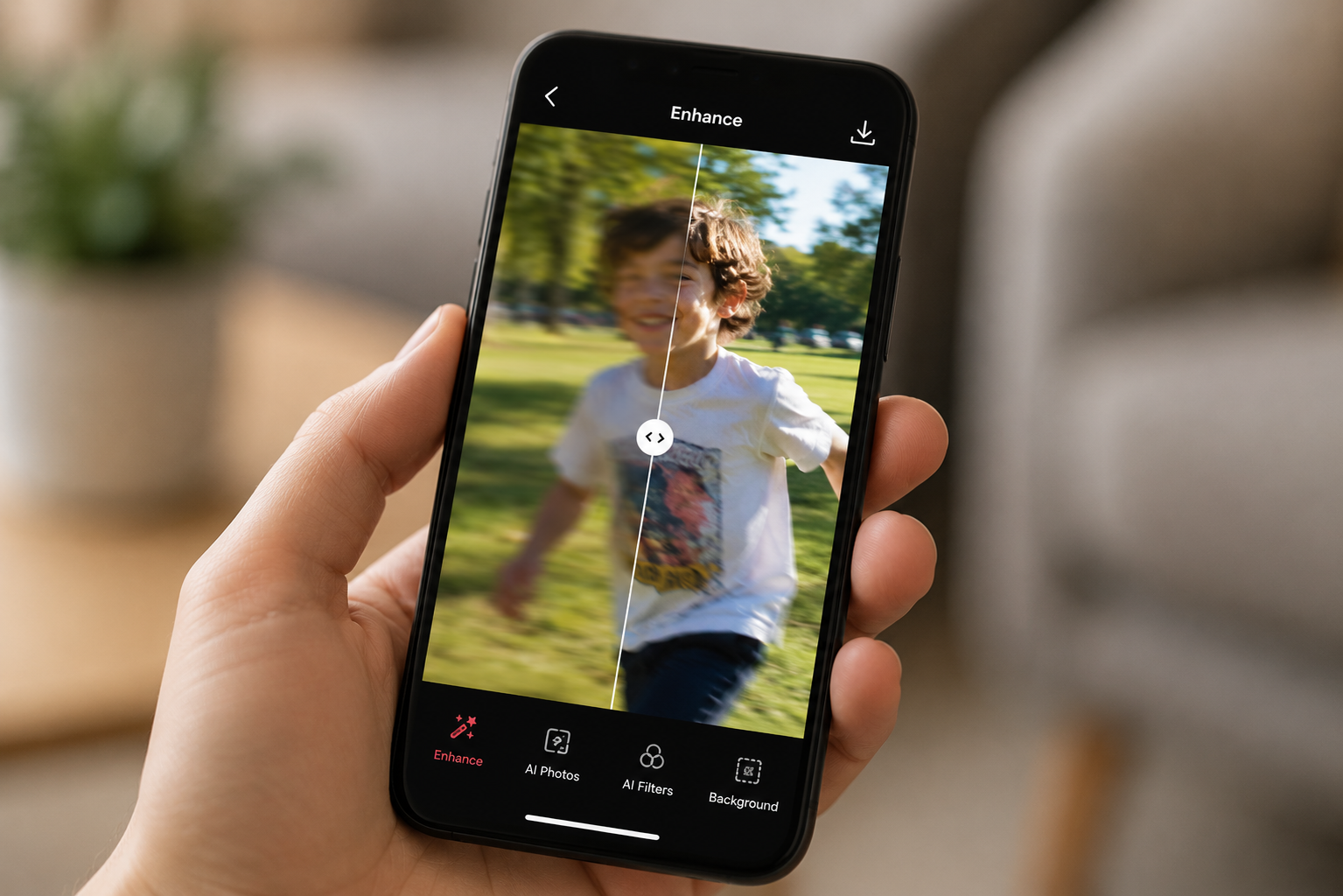
- Open Remini and tap the Enhance tool.
- Choose your blurry photo from your gallery.
- Let the AI process it — it takes just a few seconds. You'll watch it sharpen the face and details.
- Use the slider to compare the blurry "before" with the sharp "after."
- Save it in HD to your phone. Done.
That's genuinely it. No sliders to fiddle with, no settings to learn. If the first result looks slightly too sharp or a bit artificial, just run it again at a lower strength — you're never stuck with one version.
Tips to get the sharpest result
- Start with the best copy you have. If the photo exists in higher resolution somewhere, use that version, not a compressed screenshot.
- Use face enhancement for people. AI is strongest on faces — portraits and selfies clean up beautifully.
- Don't over-sharpen. If skin starts looking plastic or fake, dial the strength down. Natural always beats over-processed.
- Try it twice for heavy blur. Enhance once, save, then enhance that result again for a stronger fix.
What AI can and can't fix (an honest note)
Let's keep it real, because no app is magic:
- It CAN fix: mild-to-moderate motion blur, soft focus, low-light softness, and slightly low-resolution photos.
- It struggles with: extreme blur where the face is just a smear, or tiny thumbnails with almost no detail. AI can improve them, but it can't fully rebuild what was never there.
The rule of thumb: the more detail the original has, the better your result. A slightly blurry photo can come out looking perfect.
Is it really free?
Yes — the basic Remini app lets you unblur photos for free, though it limits how many you can do and shows ads between edits. If you've got a whole gallery of blurry shots to fix, that gets annoying fast. The Remini Mod APK unlocks unlimited enhancements, removes the ads and watermark, and gives you full HD export — so you can sharpen as many photos as you want in one sitting, completely free.
Frequently Asked Questions
Can you really unblur a photo on a phone?
Yes. AI apps like Remini can sharpen and unblur photos directly on your phone in seconds, with no computer or editing skills needed. They work best on faces and mild-to-moderate blur.
Is unblurring a photo free?
The basic version is free with limits and ads. The Remini Mod APK unlocks unlimited, ad-free unblurring in full HD at no cost.
Will the unblurred photo look natural?
In most cases, yes. Good AI rebuilds sharpness naturally rather than just harshening edges. If a result ever looks over-processed, lower the enhancement strength and try again.
Can AI fix a very blurry photo?
It can improve it, but there are limits. Mild and moderate blur clean up extremely well. If the face is a complete smear, the result will be better but not perfect — the AI can only work with the detail that's there.
Does it work on old or low-quality photos too?
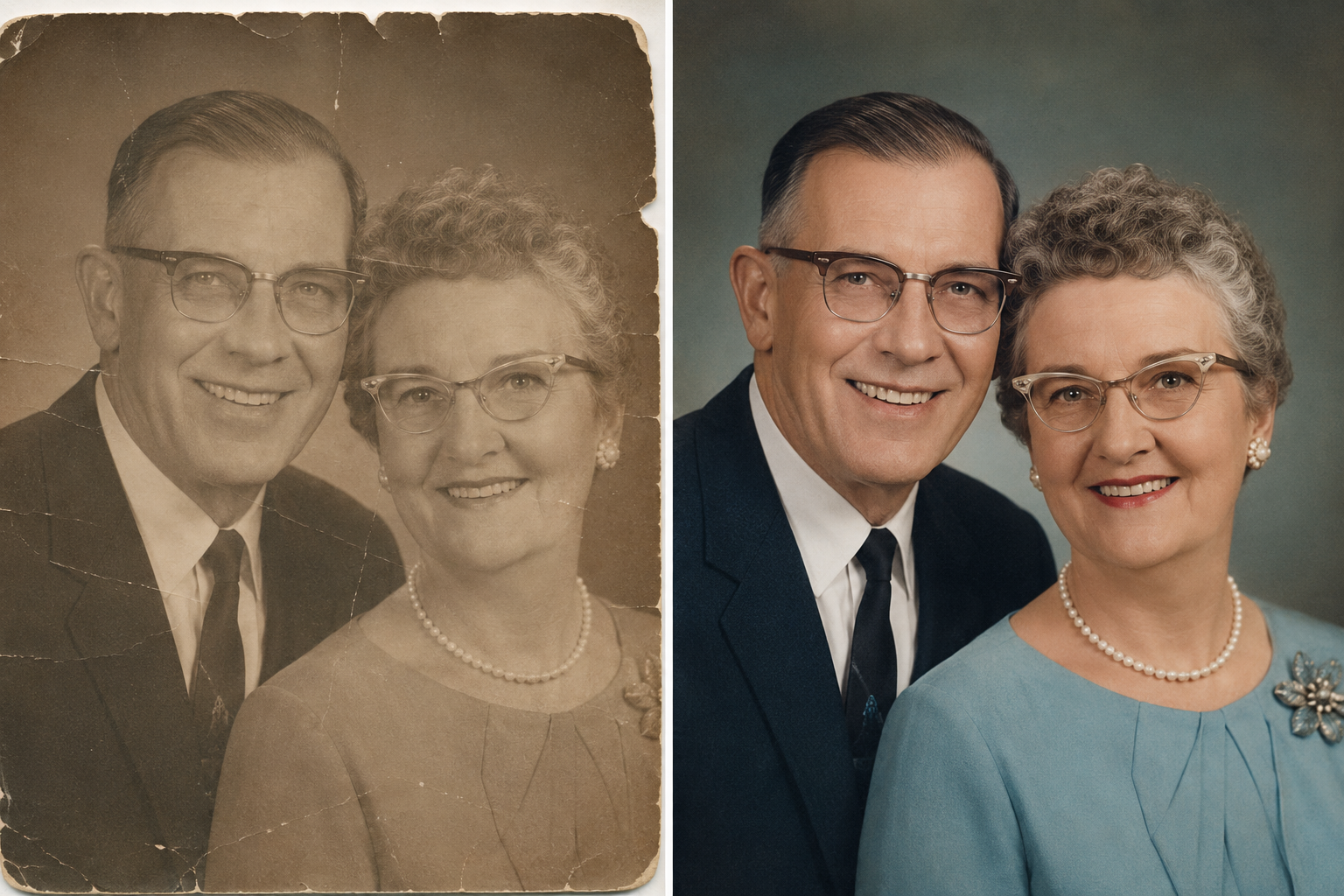
Yes. The same AI that unblurs photos also enhances resolution, so old, soft, or low-quality pictures often improve dramatically.
Stop losing your best moments to blur
A blurry photo used to mean a memory was gone for good. Now it's just a quick tap away from being saved. Next time you find an out-of-focus shot you wish had come out right, don't delete it — fix it.
Download the Remini Mod APK and unblur your first photo for free in under a minute.