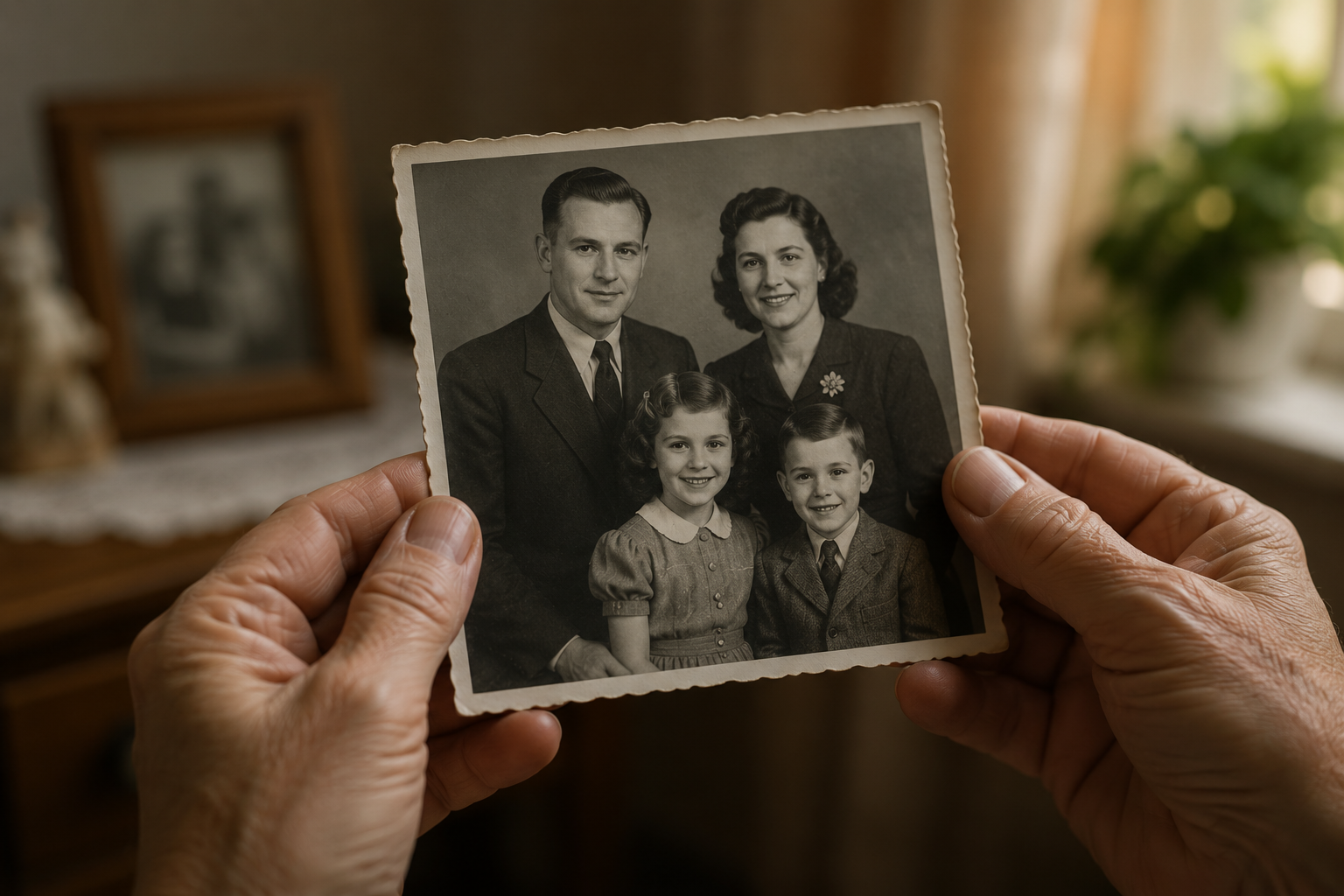
Everyone has them. A shoebox in the cupboard, an old envelope of prints, or a folder of scanned pictures where the faces have gone soft and the colours have faded to a dull yellow. Maybe it's your grandparents' wedding photo. Maybe it's the only picture you have of someone you've lost. And every time you look at it, you wish it was just a little clearer.
Here's the good news: you don't need to be a Photoshop expert or pay a studio to fix them anymore. With AI photo restoration, you can bring a faded, blurry, or even slightly torn photo back to life in a couple of minutes — right from your phone. In this guide, I'll walk you through exactly how to do it, step by step.
What does "AI photo restoration" actually mean?
Old photo editing used to mean sitting for hours, zooming in pixel by pixel, and manually painting over scratches. It was slow, and honestly, it took real skill.
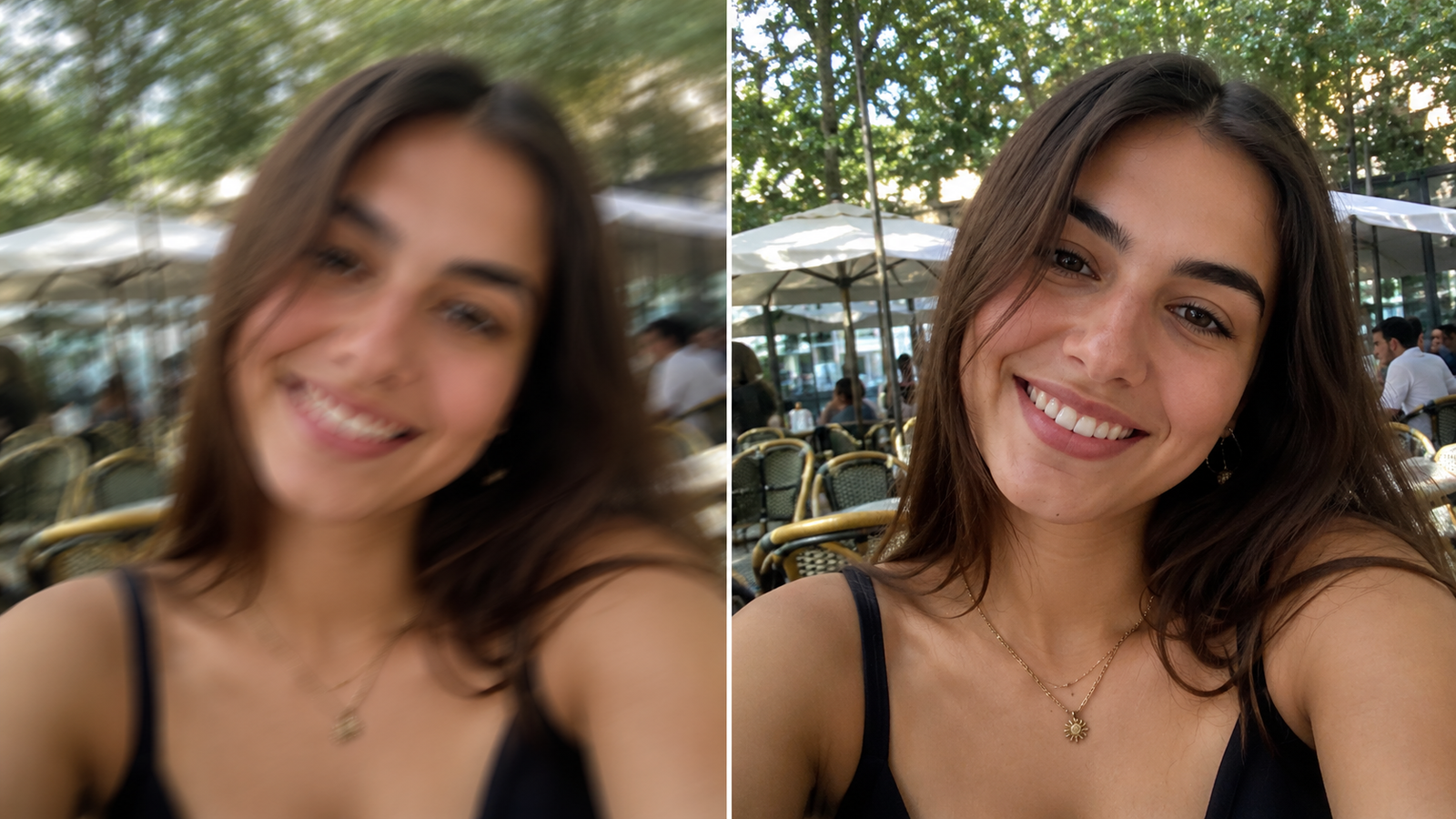
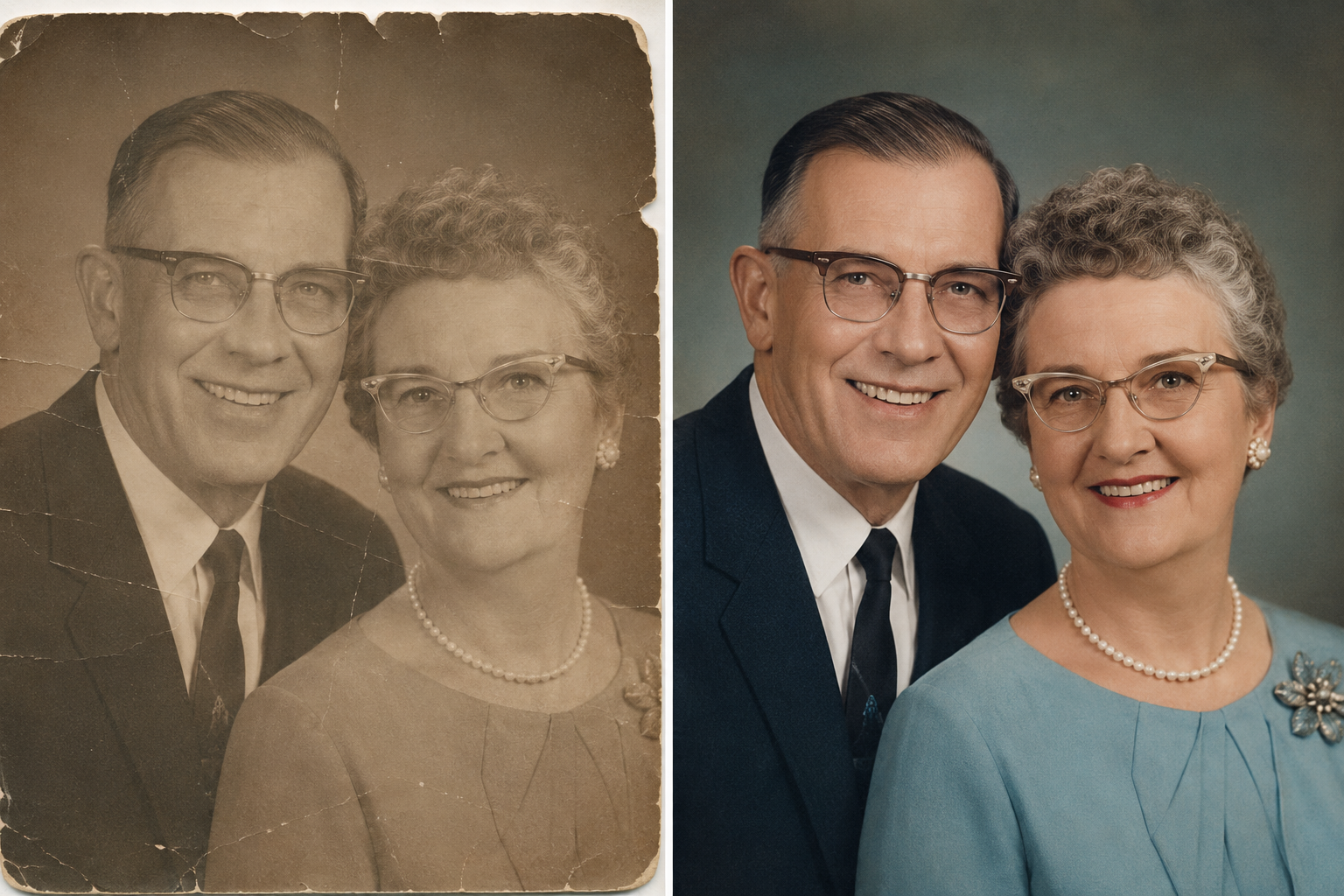
AI does the heavy lifting for you. When you upload an old photo, the AI studies it, recognises what a face, an eye, or a background should look like, and rebuilds the missing detail. It sharpens blur, smooths out grain, and brings back definition — without you touching a single slider. The result usually looks natural, not over-edited, because the AI is trying to restore the photo, not repaint it.
Think of it less like a filter and more like a smart assistant that quietly fills in what time wore away.
What you'll need before you start
- The photo itself — either a digital copy or a clear scan/snap of the printed original.
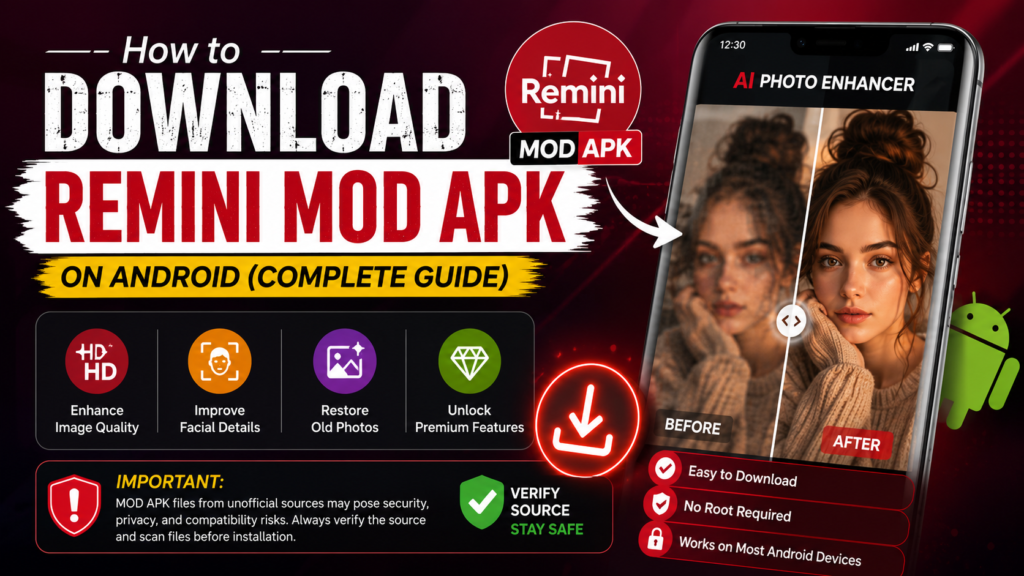
- The Remini app (or the Remini Mod APK for unlimited, ad-free enhancements).
- A couple of minutes — that's genuinely all it takes per photo.
One quick tip before anything else: if your photo is a physical print, take the picture of it in good, even daylight near a window. Avoid harsh shadows and camera flash. The better your starting copy, the better the AI can do its job.
How to restore an old photo with AI — step by step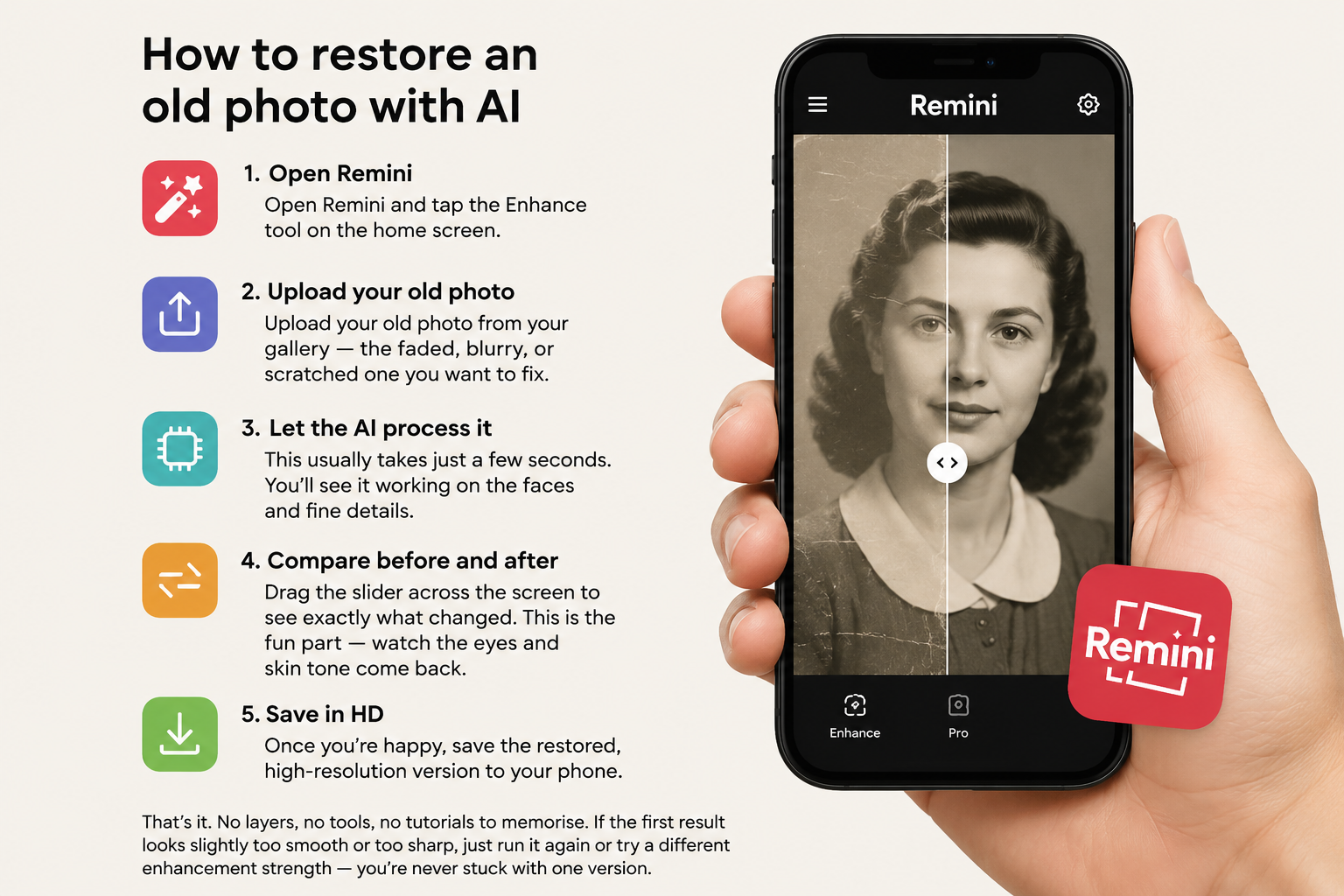
- Open Remini and tap the Enhance tool on the home screen.
- Upload your old photo from your gallery — the faded, blurry, or scratched one you want to fix.
- Let the AI process it. This usually takes just a few seconds. You'll see it working on the faces and fine details.
- Compare before and after. Drag the slider across the screen to see exactly what changed. This is the fun part — watch the eyes and skin tone come back.
- Save in HD. Once you're happy, save the restored, high-resolution version to your phone.
That's it. No layers, no tools, no tutorials to memorise. If the first result looks slightly too smooth or too sharp, just run it again or try a different enhancement strength — you're never stuck with one version.
Tips to get the best results
- Start with the highest-quality copy you have. A clean scan beats a quick phone snap every time.
- For badly damaged photos, enhance twice. Run it once, save it, then enhance that result again for an extra boost.
- Use the face-restoration option for portraits. It recovers facial detail far more naturally than a general sharpen.
- Don't over-do it. If a result starts looking like a painting or a video-game character, dial the strength back. Real beats perfect.
Common mistakes to avoid
A few things trip people up when they first try this:
- Scanning in bad light. Glare and shadows confuse the AI. Even daylight fixes most of it.
- Expecting miracles from a tiny thumbnail. The AI can rebuild detail, but it can't invent a face from ten blurry pixels. More starting detail = better results.
- Forgetting to save the HD version. Make sure you export at full resolution, not the small preview.
Should you restore photos on your phone or PC?
For most people, the phone is more than enough — it's fast, it's in your pocket, and the results are excellent. If you're restoring a large batch (say, an entire family album), doing it on a bigger screen can be easier to manage. Either way, the AI doing the work is the same.
Why use the Remini Mod APK for restoration?
The free version of Remini limits how many photos you can enhance and shows ads between edits. If you've got a whole box of memories to restore, that gets frustrating fast. The Remini Mod APK unlocks unlimited enhancements, removes the ads and watermark, and gives you full HD export — so you can work through your entire collection in one sitting without hitting a paywall.
Frequently Asked Questions
Can AI really fix a very blurry old photo?
Yes, in most cases. As long as the original has some visible detail, the AI can sharpen faces, reduce blur, and rebuild definition. Severely damaged photos may need two passes, but the improvement is usually dramatic.
Will the restored photo still look like the real person?
It should. Good AI restoration preserves the person's actual features and identity — it's recovering detail, not replacing the face. If a result ever looks "off," lower the enhancement strength and try again.
Is it free to restore old photos with AI?
The basic Remini app offers limited free enhancements. For unlimited, ad-free restoration in full HD, the Remini Mod APK unlocks all premium features at no cost.
What's the best way to scan an old printed photo?
Lay it flat in even daylight near a window, turn off your flash, and take a straight overhead shot — or use a flatbed scanner if you have one. A clean, well-lit copy gives the AI the most to work with.
How long does it take?
Just a few seconds per photo. Even a large album can be done in an afternoon.
Bring your memories back to life
Old photos are some of the most precious things we own — they're the only window we have back to certain moments and certain people. The fact that you can now restore them in minutes, from your phone, with no editing skill at all, is genuinely incredible.
So go find that shoebox. Pick the one photo you always wished was clearer, and start there. Download the Remini Mod APK and bring your first memory back to life today.